Contents
1. Bluetooth
2. Base control app
3. Pair a dock
1. Bluetooth connection
Once the terminal has completed its configuration, you will need to establish a Bluetooth connection to the Base.
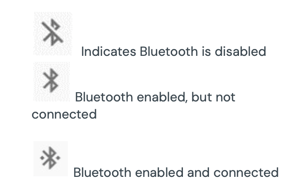
Swipe down from the top of the screen and find the Bluetooth icon. If it is greyed out or has a line through it, tap it to enable Bluetooth.
2. Base control app
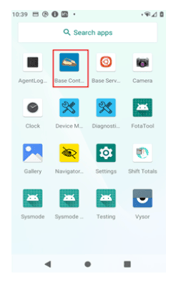
Select Base Control App
3. Pair a dock
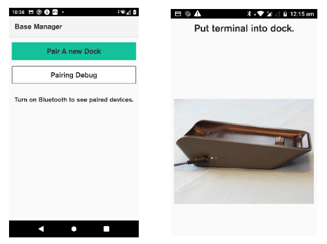
- Select Pair a new dock
- Terminal will display as shown in the image below.
- Place the terminal on the dock (base).
4. Pairing
- Pairing in progress.
- Waiting for communication from base.
Note: base must be plugged into power.
Paired successfully
On successful base pairing, the Terminal will display the list of connected base (s).
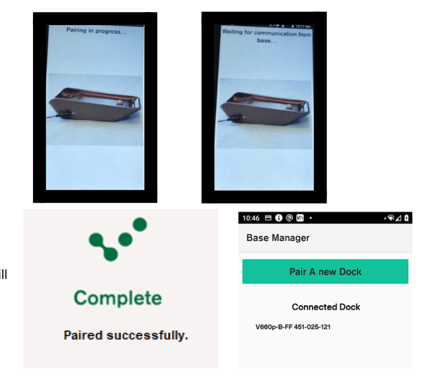
One terminal is put on the dock after a successful pairing, the base serial # may not be listed as a connected dock. You will notice the Bluetooth Icon indicating a paired base.
5. Enable Notifications
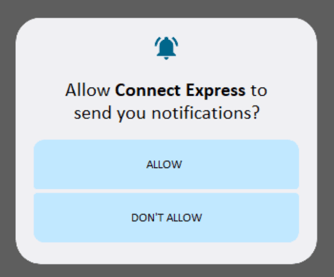
This prompt allows you to receive important updates and alerts directly from the payment app. Please tap 'ALLOW' when prompted on your device to proceed.