If the transaction is approved offline then it is added to the SAF queue to be sent to the host sometime in the future.
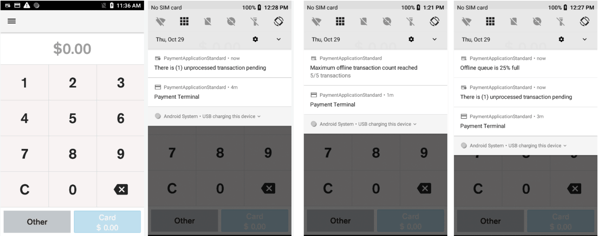
When there are offline transactions that are pending, or there is an error in uploading reversals or offline transactions, offline notifications will be shown in the Android notification drawer. They all are grouped under 3 notification groups.
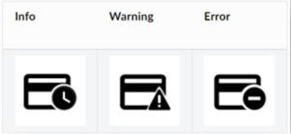
Sample Notifications
Diagnostic
There is a SAF diagnostic menu available to see current status and force push pending
transactions in the queue.
- Swipe down from the top of the screen to access the launcher menu.
- Go to Diagnostics and then select SAF Diagnostics
- Tab “Upload Offline Transactions”
Delete a SAF transaction and error reversal
There may be rare scenarios where an Offline transaction or reversal cannot be successfully cleared after exhausting all retry attempts. These transactions may need to be deleted to unblock any transactions remaining in the Offline queue.
The option to delete can be found in either the Send Offline error notification or the Send reversal error notification in the status bar. When an operator selects the notification, the transaction details will be displayed, along with a delete option. The delete option is protected by the Admin password.
SAF Diagnostic
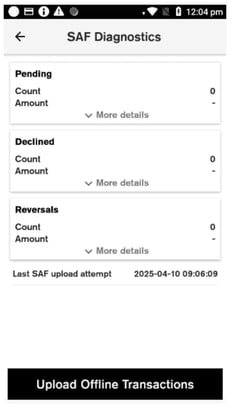
There is a Diagnostics menu from the Launcher screen, “SAF Diagnostics” menu available to see current status and force push pending transactions in the queue.
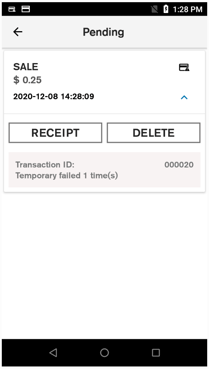
- Pending - Lists the number of offline approved transactions which are pending for upload to the host Declined - Lists the number of offline approved transactions which were declined when uploaded to the host Reversals - Lists the number of reversals which have failed.
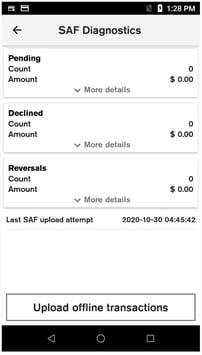
- Any section with at least 1 transaction will have a blue arrow next to “More details” which can be pressed to view additional details.
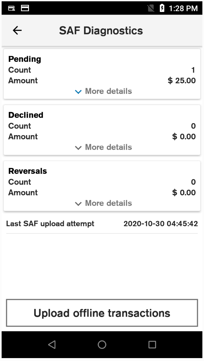
- SAF diagnostic detail view contains all transactions for the section selected.
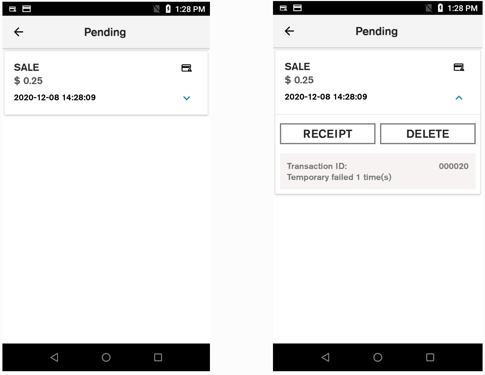
- Provides options for printing a copy of the receipt, or deleting the transaction.
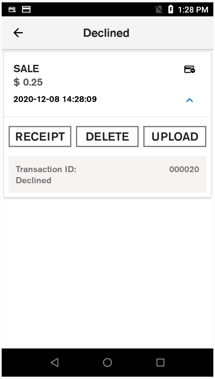
An additional option to “Upload” the transaction is available for declined transactions.
Delete error offline transaction
- SAF diagnostics detail view is the entry point to trigger the deletion flow.
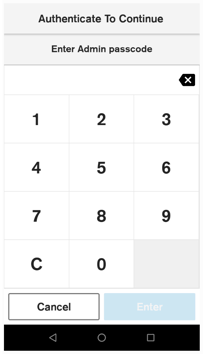
The operator is asked to enter the Admin password.
User Operation: If the operator clicks Cancel, the Delete failure screen will display. If authentication is successful, the Delete confirmation screen will display.
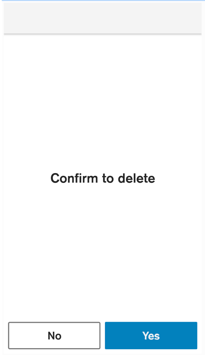
The operator will be asked to confirm deleting the transaction.
User Operation: If the operator clicks Confirm, the transaction will be deleted from the SAF queue and the terminal will print a receipt.
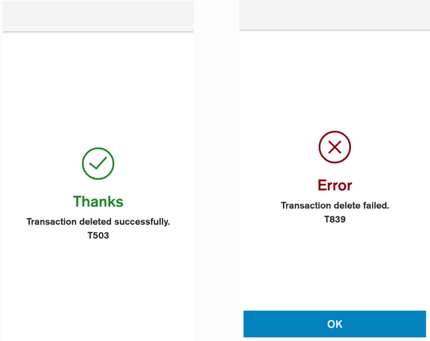
- The delete transaction operation result will be displayed, success or failure. A customer receipt will be printed upon successful deletion.