1. Purchase Transaction
To process a Purchase transaction:
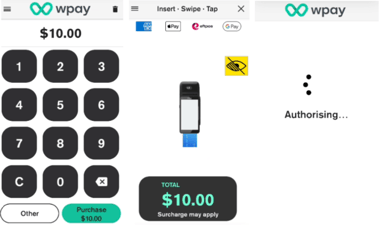
- Enter the transaction amount
- Tap Purchase (TIP: Tap the backspace key to delete a single number, or the Clear key to clear the whole amount entered.)
- Your customer presents their card or device and enters their PIN (if required).
- Graphic on-screen shows customers how to present their card:
- Tap (contactless cards or wallets) - Customer taps their contactless device or card on the contactless symbol on the printer roll cover
- Insert (chip cards) – The customer inserts their chip card into the slot at the bottom of the terminal. The card should be inserted at the chip end first with the chip facing up.
- Swipe (magnetic stripe cards) – The customer swipes their card through the magstripe reader on the side of the terminal.
- Select account type & enter PIN if applicable.
- Terminal processes the transaction and then displays Approved or Declined
- If a card is inserted, the terminal prompts to remove the card from the chip card slot
- Merchant receipt prints
- Prompts for customer receipt options. Select PRINT to print the customer receipt, or NO THANKS to continue back to the payment screen.
2. Purchase + Cashout transaction
To process a Purchase transaction with Cash out.
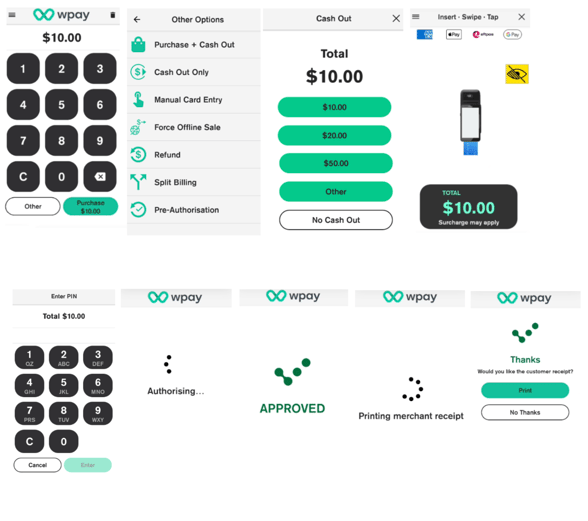
- Enter the Purchase amount.
- Tap Other
- Tap Purchase + Cash Out
- Select the cash-out amount from the list or tap Other to enter a custom amount. (NOTE: If you select No Cash-Out the transaction will proceed with no cash-out amount added.)
- Total transaction amount is displayed on-screen. Your customer presents their card and enters their PIN.
- The graphic on-screen shows customers how to present their card.
Customer taps their contactless device or card (Apple Pay, Google Pay, contactless cards) on the contactless symbol on the printer roll cover, inserts their chip card into the slot at the bottom of the terminal, or swipes the magstripe on their card through the magstripe reader on the side of the terminal. (NOTE: For Cash-Out transactions, Magstripe method is available only in NZ.) - Your terminal processes the transaction and then displays Approved or Declined
- If a card is inserted, the terminal prompts to remove the card from the chip card slot
- Customer selects preferred receipt option
- Purchase + Cash-Out summary screen is displayed. Tap DONE to continue back to the Payment screen
- Present approved cash-out amount to the customer
To process Cash out
- Enter the cash out amount
- Tap Other
- Tap Cash Out Only
- Cash-out amount is displayed on-screen. Your customer presents their card and enters their PIN.
- The graphic on screen shows customers how to present their card. NOTE: For Cash-Out transactions, Magstripe method is available only in NZ.
- Your terminal processes the transaction and then displays Approved or Declined
- If a card is inserted, the terminal prompts to remove the card from the chip card slot
- Customer selects preferred receipt option
- Cash Out summary screen is displayed. Tap DONE to continue back to the Payment screen.
- Present approved cash-out amount to the customer.
3. Purchase + Tipping
Tipping offers your customers the option of adding a tip to their purchase.
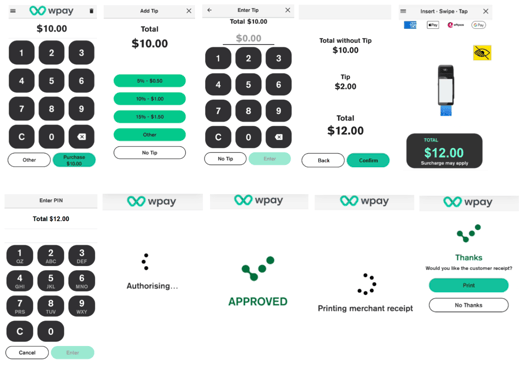
To process a transaction with a tip added:
- Initiate transaction by entering the transaction amount. TIP: Tap the backspace key to delete a single number, or the Clear key to clear the whole amount entered.
- Tap the "Purchase" button.
- Terminal prompts to select tip amount. Customer can select a predefined amount, enter a custom amount, or opt not to add a tip.
- Terminal will prompt to present card (graphic on screen shows customers how to present their card)
- If contactless, present the card or device on the contactless symbol on the printer roll cover, alternatively insert their chip card into the slot at the bottom of the terminal or swipe the magstripe on their card through the magstripe reader on the side of the terminal.
- Select account type & enter PIN if applicable.
- Terminal process transaction and then advises if transaction has been approved or declined.
- If a card is inserted, the terminal prompts to remove the card from the chip card slot.
- Prints Merchant receipt.
- Prompts for customer receipt option.