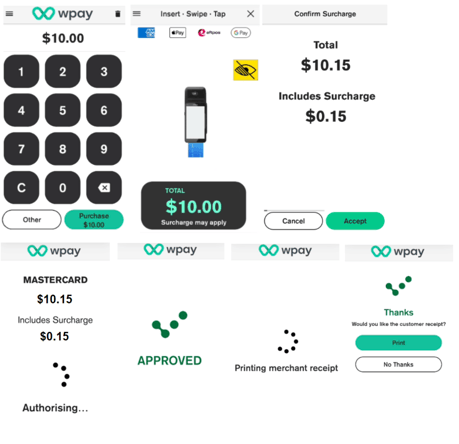
When surcharging is enabled on the terminal, your terminal will automatically detect when the
transaction is a 'Scheme transaction' and apply a surcharge. If your terminal has contactless
surcharging enabled, contactless transactions will also incur a surcharge.
Note: If surcharge is enabled on the terminal, the card presentment screen will display a note that says "Surcharge may apply" for all your surcharge enabled transactions.
To process a purchase transaction with a surcharge added:
- Enter the transaction amount
- Tap Purchase.
- The purchase amount is displayed on the screen along with the note ‘Surcharge may apply’ and Surcharge (i)button beside cancel button on card presentment screen.
- When the Surcharge button is clicked, a preview of applicable surcharges per product are displayed. NOTE: currently disabled
- Customers are prompted to confirm the surcharge amount.
- Customers enter their pin if required.
- Terminal processes the transaction and on Authorising screen Total amount along with Surcharge is displayed then displays Approved or Declined
- If a card is inserted, the terminal prompts to remove the card from the chip card slot
- Merchant receipt prints
- Customer selects preferred receipt option