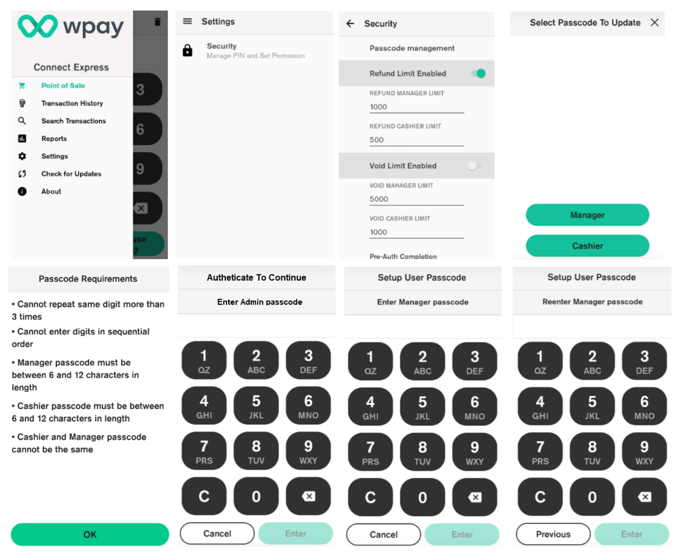
For your security, the refund functionality on your terminal is protected by passcodes. We recommend you set your passcodes up when you first get your terminal, so you’re ready to process a refund when you need to. You can also choose to apply passcode access to other functions, including settlement.
Changing Passcodes
- From the Payment Screen, tap the hamburger menu
- Tap Settings> Security> Tap Passcode Management
- Select which passcode you would like to change
- Enter the current manager passcode to continue (You will need Admin or Daily password if you are setting the passcode for the first time)
7. Key in the new passcode and then re-enter the new passcode to confirm