
For more in-depth information and feature descriptions, we will provide separate help articles.
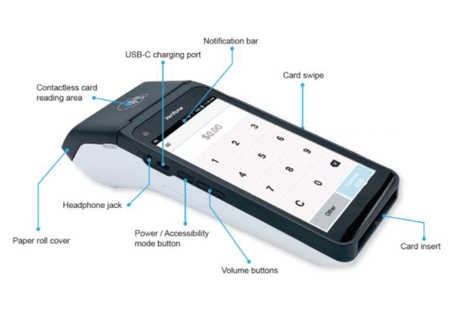
| Feature | Description |
| Card swipe | This is where your customer swipe magstripe cards |
| Volume buttons | Adjust the volume of sounds and alerts |
|
Power/Accessibility mode button |
Power your terminal off and on, lock and unlock your terminal and wake your terminal from sleep mode. Pressing this button on the side of the terminal for 1 second at the Present Card screen will enable Accessibility mode. |
| Card insert | Chip card slot |
| Navigation keys |
These keys help you quickly navigate to different screen on your V660P. From left to right: Recent items Key, payment screen key, back key. |
| Notification bar |
See alerts, battery level, connectivity status and more in the bar at the top of the screen. Swipe down from the Notification bar to view the Quick Settings panel. |
| Contactless card reading area |
If you have contactless-enabled, customers paying by contactless can tap here to make payment. |
|
USB-C charging port |
Port for a USB-C charging cable |
| Paper roll cover | Paper roll compartment |
| Headphone jack | Can be used by cardholders making a purchase in Accessibility mode to assist with hearing audio prompts |