
BlueStacks is an android emulator that can run on PC/MAC, which means you can use it to set up an instance of OPay, all you’ll need is the following:
- An Adyen Connected Terminal (If Payments Wished To Be Completed)
- A Redback Connected OM
- BlueStacks BlueStacks: Play Games on PC & Mac, Android Emulator and Cloud Gaming Platform
- The Opay App
Once the App is setup, it’s configured the exact same as any Opay installation. If you are not intending to complete any payments through the app then you can set up a fake Oolio terminal in officemate.
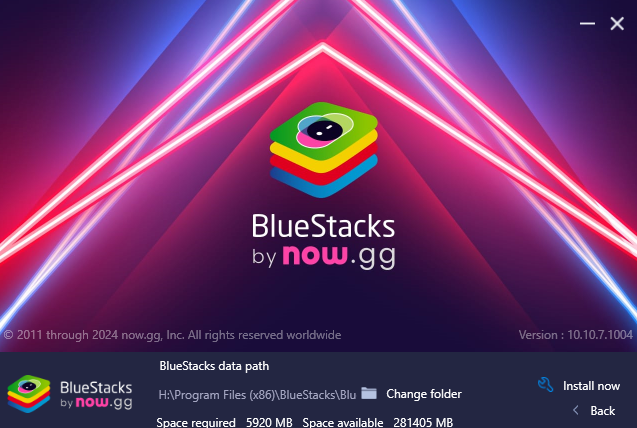
- Download and run the installer
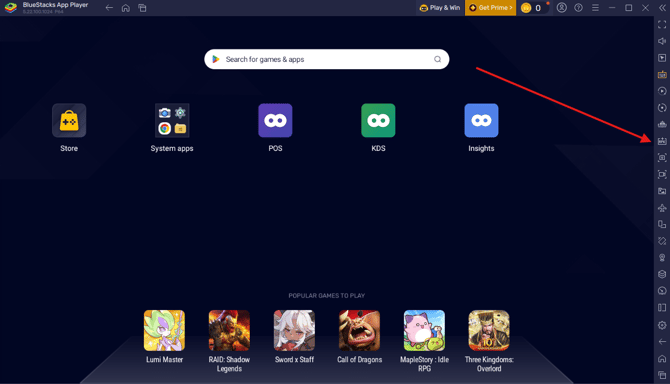
- Open The Application and Navigate to the APK installer on the sidebar
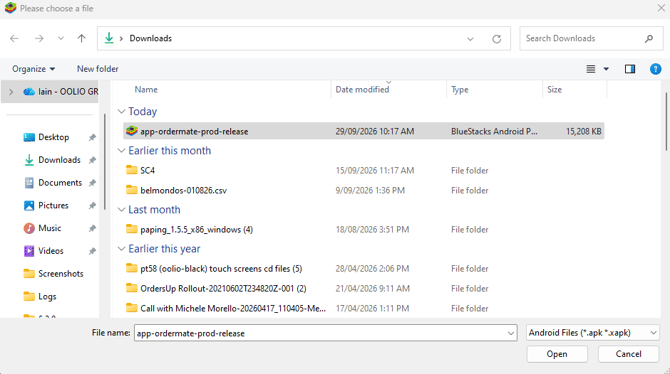
- Navigate to the APK file that has been downloaded
- Launch Opay App
- Change the orientation to portrait (Optional, makes it look neater)
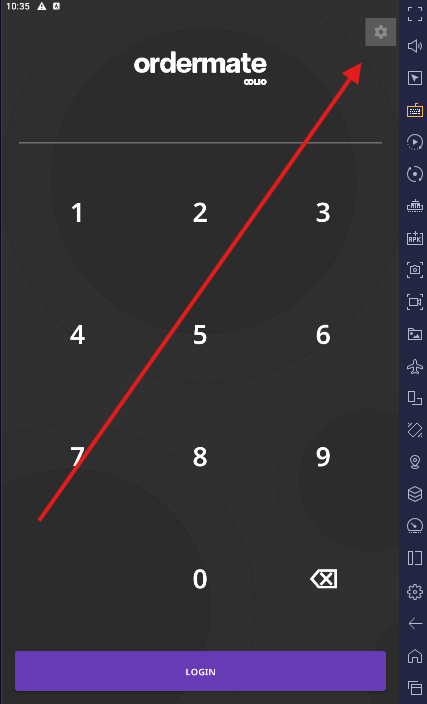
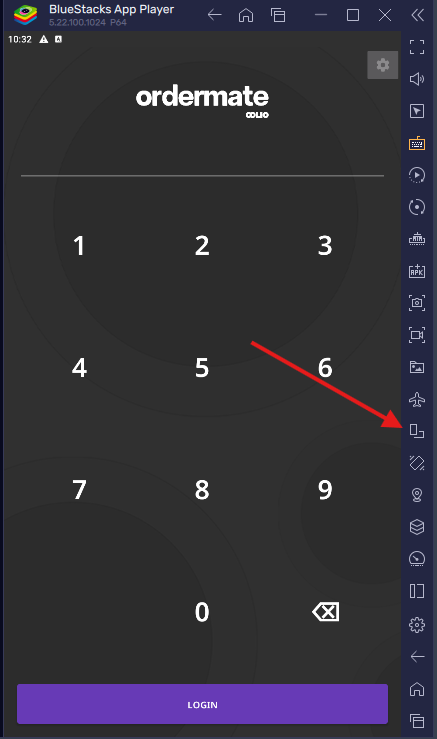 Testing/Troubleshooting with Bluestacks1. Enter the settings with the cog on the top right, use the code
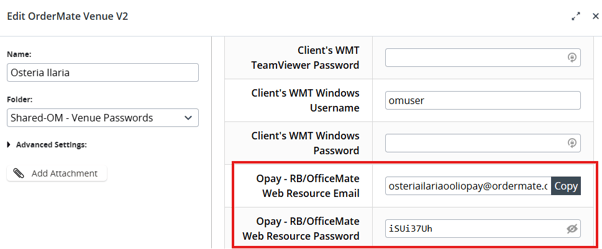
 2. Enter the username and password, these can be found on the relevant Lastpass entry for the venue.
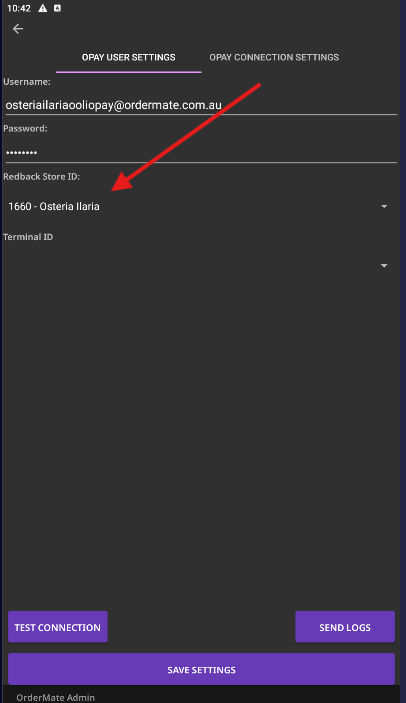
 3. Press "Save settings"4. Go back into settings and the redback store ID should be filled out
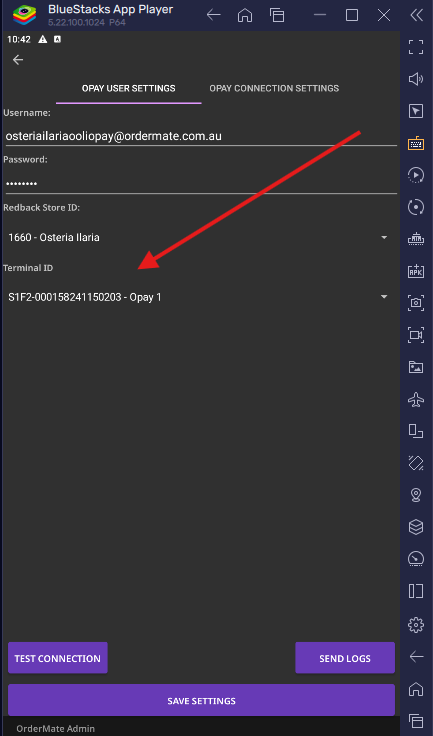
 5. Save settings once more, and go back into settings for the last time, there should be the option to choose a terminal now
 6. From here the Opay app is set up and should be functional, you can log in on the home page and should be able to see tables.If you are testing a venue that is having issues and had problems such as - terminal ID list not loading, cannot log into the app, etc. Then likely there is an issue and needs troubleshooting.